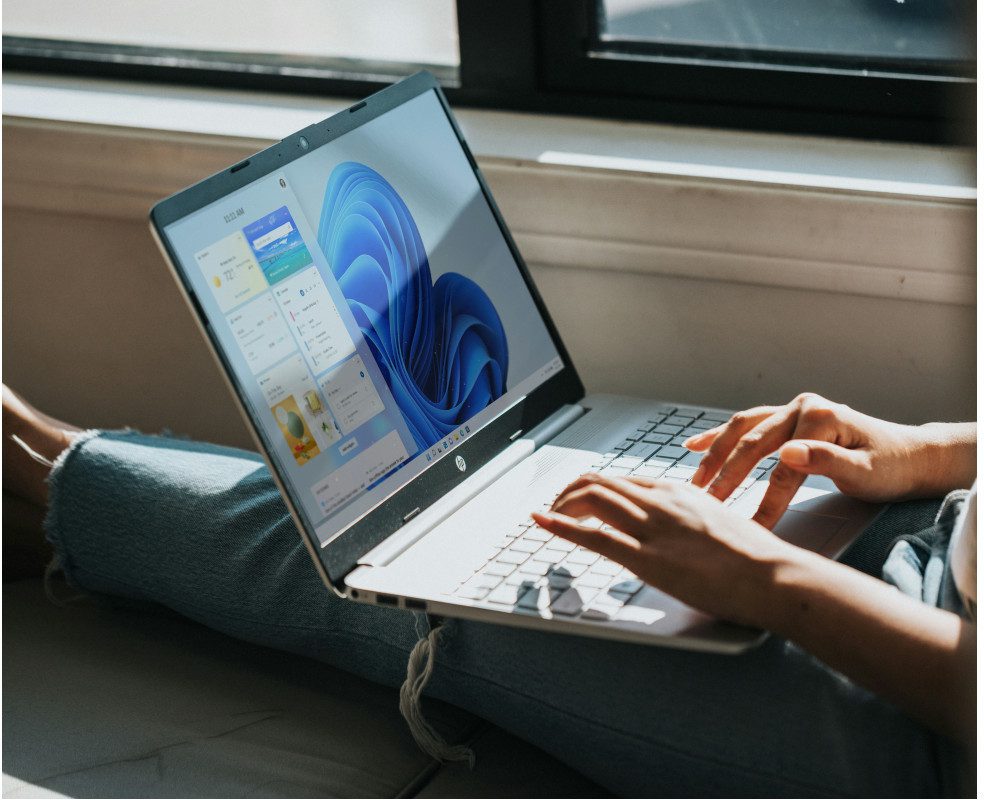
What Is Windows 11 S Mode? [Full Guide]
Microsoft has always worked to make their computer systems simple and secure. With Windows 11, the latest version, they introduced a new option called Windows 11 S mode.
S mode is designed to improve security, speed, and ease of use. It offers a more streamlined way to use your computer, but it may not suit everyone’s needs.
In this article, we’ll look at Windows 11 S mode in more detail to help you decide if it’s the right choice for you.
What Is Windows 11 S Mode?
Windows 11 S mode is a special setup of Windows 11 designed to provide a safe and simple computer experience. It only allows apps from the Microsoft Store, creating a trusted environment that helps protect against viruses, malware, and other online security risks.
Advantages Of Windows 11 S Mode
Microsoft created Windows 11 S mode with certain goals that make it different from the regular versions of Windows. Some of the main benefits include:
Enhanced Security
One of the biggest benefits of Windows 11 S mode is its stronger security. Since it only lets you install apps from the Microsoft Store, it lowers the chance of accidentally downloading harmful software. This protection helps keep your computer safe and secure.

Streamlined Performance
Windows 11 S mode helps your computer run faster. Because it limits apps from outside the Microsoft Store, your computer uses less power and memory. This means it can start up quicker, switch between tasks more smoothly, and feel more responsive overall.
Ease Of Use
Windows 11 S mode is made to be easy to use, especially for people who like a simple computer setup. All apps from the Microsoft Store are checked for safety and quality, so you get a trusted selection of reliable programs. This makes it a good choice for anyone who wants a clear and simple system without the hassle of dealing with apps from many different places.
Longer Battery Life
Windows 11 S mode uses less energy than the regular version of Windows. It does this by running fewer programs in the background, which normally drain the battery faster. This doesn’t matter much for desktop computers, but it’s a big help for laptops. A longer battery life means you can get more work done without needing to charge as often.
Microsoft Integration
Businesses that already use Microsoft tools like OneDrive and Microsoft 365 can benefit from Windows 11 S mode. Since all these products are built to work well together, they run smoothly with fewer problems. S mode’s focused system makes this connection even stronger.
The Disadvantage Of Windows 11 S Mode
While Windows 11 S mode offers several advantages, it also presents a few significant limitations to consider:
Limited Application Selection
Because Windows 11 S mode only allows apps from the Microsoft Store, it keeps your computer safer but also limits your choices. Some special or less common apps may not be available, which can reduce flexibility.
You can switch out of S mode to use a wider range of apps, but once you make the change, you can’t switch back.
Reduced Customisation
Windows 11 S mode focuses on keeping things simple, which means there aren’t many options for customising your computer. If you’re used to adjusting settings or using advanced features, the simpler setup may feel limiting. Switching out of S mode gives you more freedom to personalise your computer the way you like.
Inability To Use Linux
Windows 11 S mode does not let you run Linux apps. This rule is there to help keep the system safe and protected from possible security risks.

Limited Access To Command Line Tools And Code Editors
Windows 11 S mode does not allow tools like Windows Terminal, PowerShell, or code editors, which makes it less useful for developers, IT workers, or people who manage many computers.
In the end, whether you turn off S mode depends on your needs. If you want more apps and customisation, switching out of S mode is the better choice. But if you care most about security and keeping things simple, staying in S mode may be best.
External Compatibility Issues
Some devices, like printers, need special software to work with your computer. If that software isn’t in the Microsoft Store, the device won’t work while in S mode. This could mean spending extra money on a replacement or finding another way to connect it.
Web Browser Restrictions
In Windows 11 S mode, the only web browser you can use is Microsoft Edge. A few other browsers are in the Microsoft Store, but you can’t install any outside of it. For now, it’s not certain if Microsoft will allow more browsers in the future.
S Mode Can’t Be Enabled After Turned Off
Windows 11 S mode is set up during installation. You can turn it off at any time, but once you do, you can’t turn it back on. This is because your computer might download or change things that don’t work with S mode, and the only way to go back would be to completely reinstall Windows. This can be frustrating for people who want to try it both ways.
What To Consider Before Turning S Mode Off
Switching out of Windows 11 S mode is usually simple if you follow the steps carefully, but it’s smart to take a few precautions first. Make sure you have a good internet connection and a Microsoft account, since you’ll need both to access the Microsoft Store. It’s also a good idea to back up your important files just in case.
If you decide that S mode isn’t right for you, turning it off will remove the restrictions. Once it’s off, you’ll be able to install apps from outside the Microsoft Store.
How To Turn Off Windows 11 S Mode
Steps to turn off Windows 11 S mode:
- Open the Settings app.
- From the left-hand menu, select System.
- Scroll down and click on Activation. This section allows you to manage your Windows license, including switching out of S mode.
- Under Activation State, expand the option. If your device is in S mode, you will see a button such as “Switch to Windows 11 Home” or “Switch to Windows 11 Pro.” Select this option.
- You will be redirected to the Microsoft Store, where additional details will be provided along with a ‘Get’ button.
- Select ‘Get’ to confirm. The switch will begin and should complete quickly.
After the process finishes, your device will be running the full version of Windows 11 without S mode. To confirm, try downloading a trusted app, such as Google Chrome or Mozilla Firefox. If the installation works, S mode has been successfully disabled.
What Are Some Alternatives To Windows 11 S Mode?
Windows 11 S mode has many benefits, but it also has some downsides that may not work for everyone. In those cases, it makes sense to turn off S mode and switch to a version of Windows 11 that fits your needs better. Here are some of the editions you can choose from:
Windows 11 Home
Windows 11 Home is the standard version most people use. It includes all the main features of Windows, such as security tools like encryption, a firewall, network protection, phishing detection, and multi-factor authentication (MFA). While other editions may add extra features, Windows 11 Home still gives you strong security and performance. If you turn off S mode, your computer will switch to this version.
Windows 11 Pro
Windows 11 Pro includes everything in the Home edition, plus extra security tools designed for businesses. It lets IT teams set up, protect, and manage computers remotely through the cloud, which helps companies stay secure and follow important rules.
Windows 11 Pro For Workstations
Windows 11 Pro for Workstations is a specialised version made for a small group of advanced users and businesses. It offers features like memory that keeps data even when the computer is turned off, SMB Direct for faster file sharing, and the Resilient File System (ReFS), which can spot damaged data and repair it using a safe copy.
Windows 11 Enterprise
Windows 11 Enterprise is designed for large companies. It includes everything in the Pro version plus extra features like DirectAccess, Windows To Go, and BranchCache. It’s sold through volume licensing, which means a business can buy one license and use it to activate Windows 11 Enterprise on many computers.
Windows 11 Education
Windows 11 Education works much like the Enterprise version but is built for schools and the education sector. It often comes pre-installed on devices made for students and teachers. Schools and districts can also buy it through volume licensing, which lets them use one license to set up Windows 11 Education on many devices instead of purchasing each one separately.
Windows 11 SE
Windows 11 SE is designed for smaller or less powerful devices, like basic laptops. It comes with Microsoft 365 already installed and uses OneDrive to store files in the cloud. This version only comes pre-installed on certain devices, so the only way to get it is by buying one of those. Similar to S mode, you can only download apps that are approved.
What Productivity Apps Are Available With S Mode?
You can find productivity apps for Windows 11 S mode by typing “productivity” in the Microsoft Store search bar. There’s also a productivity section in the menu, but it only shows a small selection of highlighted apps. Below are some useful productivity apps available in S mode:
- Microsoft 365: A set of programs that work across S mode and other devices.
- Microsoft Teams: For chat, meetings, file sharing, and scheduling.
- Microsoft Edge: The only web browser that works in S mode.
- Slack: A communication tool that’s great for businesses.
- Adobe Express: Create graphics, logos, web pages, and short videos.
- Photoshop Elements: Simple photo editing with built-in templates and AI tools.
- Evernote: Write notes, tasks, and ideas that sync with Google Calendar.
- Concepts: A digital sketchbook for organizing thoughts and ideas.
- Trello: A project management app with an easy-to-use interface.
- Phone Link: Connect an Android phone to your PC to sync calls, texts, and files.
- Zoom: A video meeting app with many features
- Dropbox Lite: A lighter version of Dropbox made for S mode.
Any app not available in the Microsoft Store won’t work in S mode, unless you can use it through a web browser.
Need To Upgrade To Windows 11? Shift Computer Solutions!
Microsoft will officially end support for Windows 10 on October 14, 2025. To ensure your systems remain secure, efficient, and fully up to date, we recommend upgrading to Windows 11 as soon as possible. If the process feels complex, Shift Computer Solutions is here to assist. Our team can guide you through the upgrade and advise whether any of your existing equipment also requires updating.
We trust this overview has provided clarity on whether Windows 11 S Mode or the standard edition is the best fit for your business. Should you have any questions, our experts are ready to help. Let us work with you to optimise your IT infrastructure for peak performance.

FAQ
What Does A Linux Application Do?
A Linux application is a program that runs on the Linux operating system. These programs can do many different jobs, like helping with work tasks, writing code, managing computer systems, editing photos or videos, browsing the web, or keeping the system running smoothly.
Who Uses Windows Terminal And Powershell And Why?
Windows Terminal and PowerShell are tools mainly used by system administrators, developers, and advanced users to manage and control Windows. In Windows S mode, these tools have limited functionality and can’t be used the same way as in the full version of Windows.
How Does Windows 11 In S Mode Compare To Windows 11 Home And Windows Pro?
Windows 11 S mode is very similar to Windows 11 Home, but with a few limitations. It is only available as part of the Home edition.
In S mode, you can only install apps from the Microsoft Store, programs from other sources won’t work. You also can’t install drivers using an installer, which may limit the types of hardware that can be used with S mode.
How Do I Switch Back To Windows 11 S Mode?
Switching out of Windows 11 S mode is permanent. Once you turn it off, your computer will stay on the standard version of Windows 11 and you can’t go back to S mode.
What Happens If I Need To Use An App That Is Not Compatible With Windows 11 S?
If you try to open an app that isn’t in the Microsoft Store, Windows 11 S mode will let you know it’s not available. It may also suggest similar apps or alternatives that are already in the Store. Some developer tools won’t work in S mode, and a few apps with known issues will list those problems on their Store page.
If you still want to use an app that isn’t in the Microsoft Store or has compatibility issues, you can switch out of S mode. Just remember, once you switch, you can’t go back.
How Will I Know If An App Or Device Becomes Compatible?
The list of apps and devices that work with Windows 11 S mode is growing all the time. For the latest updates, you can check this website, the Microsoft Store on your computer, or the manufacturer of the app or device.
If you need to use something that isn’t compatible, you can switch out of S mode. Just keep in mind that once you switch, you can’t turn it back on.
What Do You Recommend For Customers Who Use Assistive Technology And Are Interested In Windows 11 S Mode?
Windows 11 includes many built-in accessibility features to help people use their computers more easily. There are also helpful apps in the Microsoft Store, like KNFB Reader and the Read&Write extension for Microsoft Edge.
If you need assistive technology apps that aren’t in the Microsoft Store and can’t be downloaded in S mode, you’ll have to switch out of S mode. Once you do, you won’t be able to switch back.